Creating Widgets in iOS 10

Widgets are something that every trending iOS application is looking forward to. Widgets help users to get some quick and relevant information without even opening the app. They are best suited for applications like Weather apps, To-Do list apps, Calendar apps which might show a day’s schedule. The widget should provide the immediate and relevant information that user must be interested in. The amount and type of information that widget carries, varies according to the requirement of the containing App of the widget.We will learn through this blog what are widgets and how to make widgets for our iOS app. We have already made an application called RemindME which is a small To-Do list application.How to create widgets in iOS 10 | Humble Bits

What we are going to cover 

  • iOS 10 Widget UI
  • Sharing UserDefaults and Files with Widget
  • Updating the content
  • Adjusting Widget’s Height
  • How to open App from Widget
  • When my Widget should Appear?
  • Home Screen Widget

Start-Up Project

We have already created an application that allows user to add some To-Do items with title and description and shows its status as done or not done. This will be containing app for our widget.

Getting Started

So, enough saying now and let’s get started with the real code. Widgets are nothing but a type of App extensions called Today Extension. So if anybody needs to know about app extensions, you can see this apple documentation. Now, add target by selecting File/New/Target and then under iOS section select Today extension and press next. After that give name to your widget and select the containing app as your project.

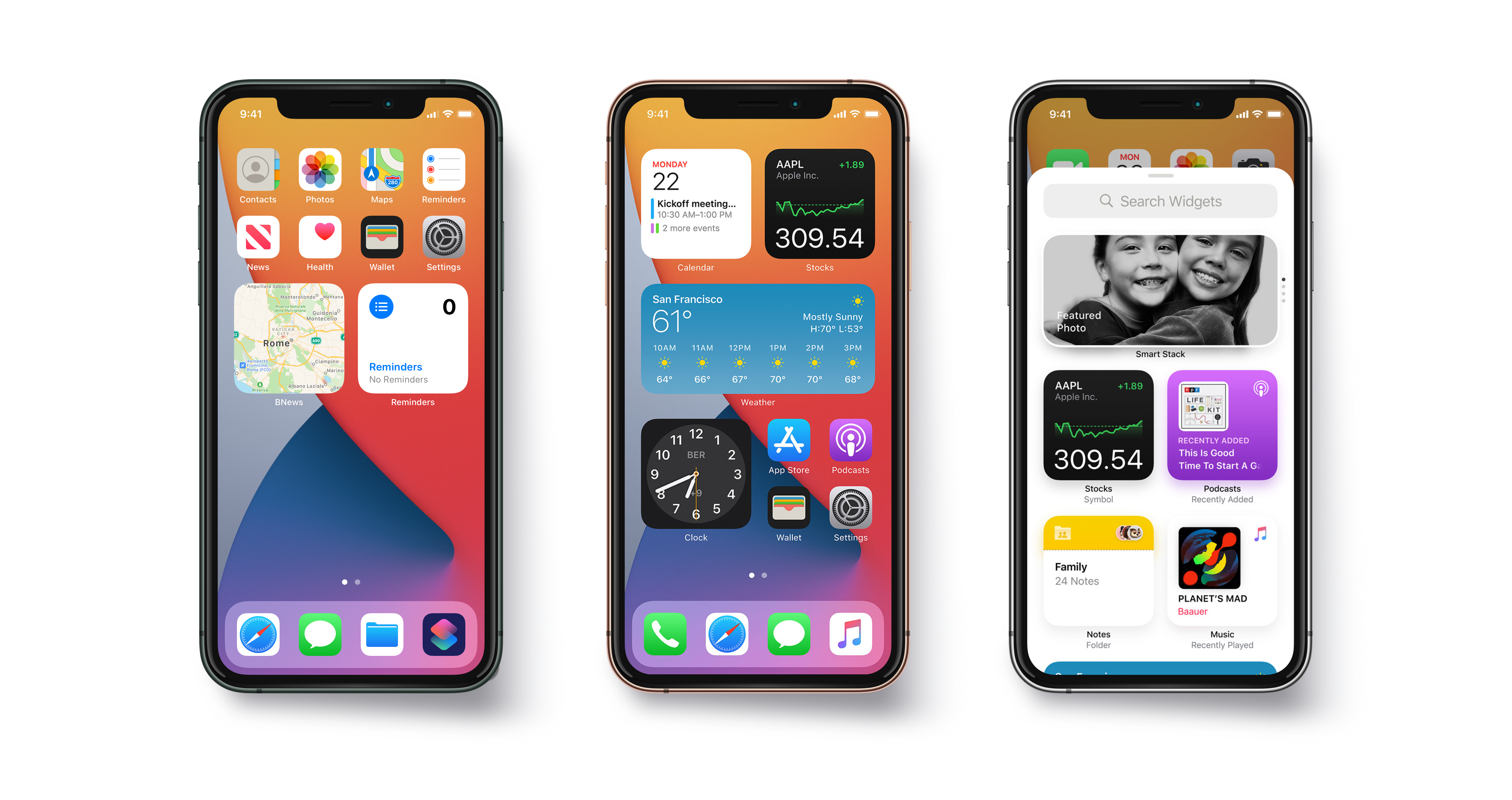
Now we can see in project navigator a new group will be added with our Widget’s name. Change Schema and select target as the widget and run project. You will  see widget in the notification center of our simulator with a message “Hello world” like this.
10 Tips on Developing iOS 14 Widgets Swift and SwiftUI | The Startup

iOS 10 Widget UI

Let us now design how our widget is going to look like. Open the storyboard of our newly added target and remove the default label. We are going to add a tableview and a button and two labels in our tableview cell. We have added UIImage for the status of the reminder and labels for title and description of the reminder. We have added a class called WidgetTableViewCell. Select the tableview cell and in identity inspector, add class name as WidgetTableViewCell. Add constraints to the views as needed and connects the outlets in the WidgetTableViewCell using Assistant Editor.

iOS 10 UI

We will also add Visual Effect View With Blur  from the object browser in our tableview cell. This is to add vibrancy effect to our widget. This causes a blur background in our Widget’s view. This is to make it look similar to what default iOS widgets look like. Make an outlet of visual effect view in the WidgetTableViewCell and name it as “visualEffectView”.

This ensures that vibrancy is similar to system-defined one for Today Extensions and the UI looks like default iOS 10 widgets.

Sharing UserDefaults and Files with Widget

Widgets are nothing but extensions. Extensions are just like another application so our containing app and widgets cannot communicate directly. There may be situations when our containing app and widget need to share some data. We can do that by sharing UserDefaults between them.

To enable this, select the main App target and choose Capabilities tab and then enable App groups. We require apple developer account for this. Now, create an app group. App group name must start from “group”. We have created an app group with name “group.com.quovantis.RemindMe”

Similarly we will repeat the process by selecting the target for widget. But we don’t have to create a new app group, we can use the one we created before. Now when we will save or retrieve anything from UserDefaults we will use this group.

We have made a class that will manage writing and reading our Reminders from UserDefaults. This code can be used by both our containing app as well as our widget extension.

We have used UserDefaults(suiteName: “group.com.quovantis.RemindMe”) for writing and reading our Reminders. This ensures both our containing app and the Widget extension save and read the data from a shared UserDefault under a common suite.

Now if we have to use the same UserDefaultsManager class in our Widget target also, we will have to enable it explicitly from the File inspector. Select the file UserDefaultsManager.swift and from File inspector check RemindMeWidget. Similarly if we have to import any other file like Assets.xcassests into our widget extension we can do the same.

Now we have shared UserDefaults between main app and widget, we can now add content to our widget. We will read data from the UserDefaults and will show the reminders in the table view of the widget. Widget will show the title and description of the Reminder and a button checked or unchecked depending upon the status. We will fetch the reminders from the UserDefaults in the viewWillAppear and will refresh the tableView. You can look the code in the TodayViewController.swift file in the RemindMeWidget folder.

We can also add actions to our widget. We have added an action to the button in our widget. When it is pressed that reminder is marked as done by updating status of the reminder in UserDefaults. Code for this action is written in WidgetTableViewCell class.

Now when we add any reminder from our main App, it will be reflected back to our widget also.

Updating the content

Now we will see how to add support to our widget to update its view when it’s off-screen, by allowing the system to create a snapshot. The system periodically takes snapshot to help our widget stay up to date. That is done through widgetPerformUpdate method.

We need to replace the existing implementation of widgetPerformUpdate

If we get reminders from the UserDefaults successfully, we update the interface and the function calls the system-provided completion block with the .newData enumeration. This informs the system to take the fresh snapshot and replace it with the current.

If we fail to get reminders then we call the completion handler with .failed enumeration. This informs the system that no new data is available and the existing snapshot should be used.

Adjusting Widget’s Height

As we have limited space in our Today View, System provides a fixed height to all the widgets. We have to design our widget UI in accordance with that . But we can also provide the option to increase the height of the widget so as to show more information in the Today view.

Our TodayViewController conforms to the NCWidgetProviding that provides the method to do this. There are two modes of the Widget of type NCWidgetDisplayMode, compact and expanded.

This will specify that widget can be expanded and we get a default button to expand and close the widget. Now add this method to adjust the size of the widget.

Whenever the widget height is adjusted this method is called where we have specified the height in case of compact and expanded state. In expanded mode we set preferredContentSize to the combined height of the cells of our tableview in Widget and when it is in compact mode we set preferredContentSize as CGSize() which gives the default height to the widget.

How to open App from Widget

Users may also want to open the containing app from widgets so as to have a detailed look over the information shown in the widget. For that we will have to allow our widget to open our containing app.

For this we use URL Schemes. We can open any app that supports URL Scheme from our widget but we should do that rarely. As user may get confused regarding the container app of the widget. Generally we should link the containing app of the widget only.

For enabling the URL Schemes in our containing app we need to add the following rows in our info.plist

After that we use the extensionContext property of type NSExtensionContext in our TodayViewController class to call the openUrl function. We have written this code in didSelectRowAt Index of our tableView

When my Widget should Appear?

There can be situations when under certain circumstances, you want your widget to appear in Today view. For example, there is no new or noteworthy information to show and you want to hide your widget until something new information comes up.

You can do this by using setHasContent: forWidgetWithBundleIdentifier: method of class NCWidgetController. Set the flag as true or false to show or hide the widget respectively and specify the bundle identifier of the particular widget which we want to hide or show.

In our case we will hide the widget if there are no reminders in our app. And as soon as the count of the reminders is one or more we will show the widget again.

We can write the code to hide widget from the TodayViewController itself but we must always avoid this. Our containing app should be the one which will decide when to hide or show the widget.

Write this function in the ReminderListViewController-

Home Screen Widget

We have seen applications show widget along with the quick actions when we Force Touch the app icon. If we have only one widget in our app, it is shown by default. But if our app offers two or more widgets then we will have to specify the bundle identifier of the widget in the info.plist that we want to show when we Force touch our app.

Add UIApplicationShortcutWidget key in the info.plist with the bundle identifier of the widget as its value.

Summary

So, this is all about iOS 10 Widgets for iPhone. Thank you for reading this tutorial and I hope you enjoyed this. You can think some more innovative ideas to explore more possibilities from Today extensions and think about ways to update your existing applications with your own widgets.

A Guide To Get Million Downloads On Your App

Get to 1+ Million Installs For Your App - BuildFire

With the immense amount of competition on both the Google Play Store and Apple Store (over two million and counting), convincing the users to install a new app is very challenging.

How many times have you heard people say that no matter how innovative your idea is, only those rule the stores and users’ devices that have already established themselves in the market?

Having developed a series of apps that have hit the million downloads mark, our team of app developers that it is nothing but hearsay. With the right blend of development and marketing, you can boost mobile app downloads and can help it reach the million mark too.

While you have the support of our app developers to help build a robust app, to bring you up to speed with the marketing front of getting million app downloads, we have curated a guide for your journey.

We have divided this guide into two parts – Pre and Post Launch of your Mobile Application, both of which together will help you get answer to ‘How to Get More App Downloads’.

Let us start with the pre launch part of mobile app promotion strategy first to to ensure that you are prepared to woo the Million of App Store users, even before it has found a place in their devices.

Pre-launch success preparation of your mobile app

Ideally, the efforts you are putting in this stage should start at least 2 months before the actual launch in the stores. Start with the pre launch stage as soon as your app enters the last testing stage.

How to ensure that You Get Maximum App Download From the Technical Front –

Ensure that Your App Doesn’t Crash

and your app has crashed! – Rapidsoft Technologies

Prepare your app in a way that it doesn’t crash even once after it is downloaded on users’ devices. You have to understand that the stores are full of extremely impatient users, who will abandon after even two repeated instances of crashes.

Presence of an Intuitive UI

Material Chat | Android app design, Android design, User interface design examples

Run through your App’s UI as many times as possible. Look into how easy it is for your audiences’ demographics to move inside the app, if the UX elements are in line with what they are used to work around. And, finally, it’s easy for them to move inside once they have done the app download deed.

Get Your App Tested Enough

Are Inadequate Mobile App Testing and QA Hindering Your Success? | Proto.io Blog

Test your app not just on different devices but also on different operating system versions and in under different network conditions. Don’t even think about rolling it out for downloads, before you have ensured that your app is tested and secured against every permutation and combination of users’ movement.

How to ensure that You Get Maximum App Download From the Marketing Front

Set Up Pre-Launch Ad Campaign

How To Build A Successful Pre-Launch Marketing Campaign

Start with creating anticipation about your app on your website, the social media channels, platform where your people of your app community visit and uses most often. Through all your mediums, prepare your audience for the time to come and how it would change their life.

Don’t show them anything other than your logo at this stage. Your time to showcase your app would come, but it’s not now.

Prepare to Rule the App Store Listings

How To Optimize Your Google Play Store App Listing Page - BuildFire

Your probability of getting maximum app downloads is directly proportional to your placement in your category list. The higher you are in the list, the greater are the chances of visibility and click through rates.

Draft an ASO and PSO strategy. Start getting videos and screenshots made to showcase your creation in the stores, have a set of keywords ready with you, draft content to post in the app description section.

Open your Doors for the Press

Just days, around two weeks before the actual launch of the app, send invites to the press and PR agencies to cover it and post its coming in their dailies. Infact, now would be time when you contact websites that curate lists like ‘App of the day’ and get your name on the lists.

With just two or three weeks to the launch, announce your coming to the Android and Apple Store to the world.

Invest in PPC

The Step-by-Step Pre-Launch Plan We Used To Prepare For Our Startup Launch | by Krish Ramineni | Fireflies.ai Blog

Just week before you become available to app downloads, invest in a PPC campaign. Run your ads on Google on every keyword and phrases that are related to your app category and similar to what your users are looking for.

This was it on the Pre Launch part of Taking Your App towards Million downloads. To sum up, you have to create anticipation, promote your application everywhere your audience is and while you are doing this, focus on how the development process is coming up.

Now that you know the pre launch part of ensuring the success of your mobile app before it is launched in the stores, let us look into the post launch parts of its success. This is exactly where all your efforts would pay off.

Post-launch success preparation of your mobile app

The cumulative effort that you had put up until this part both in development and marketing, boils down to this stage, when it’s time to reap the benefits. But your dream to achieve a million downloads still requires time and efforts to become real.

Post Launch efforts to reach million app downloads are in many ways much higher than your pre launch work as now it’s time to deliver the users what you had created anticipation for.

Here are the ways you can pave the last road to your million app download mark –

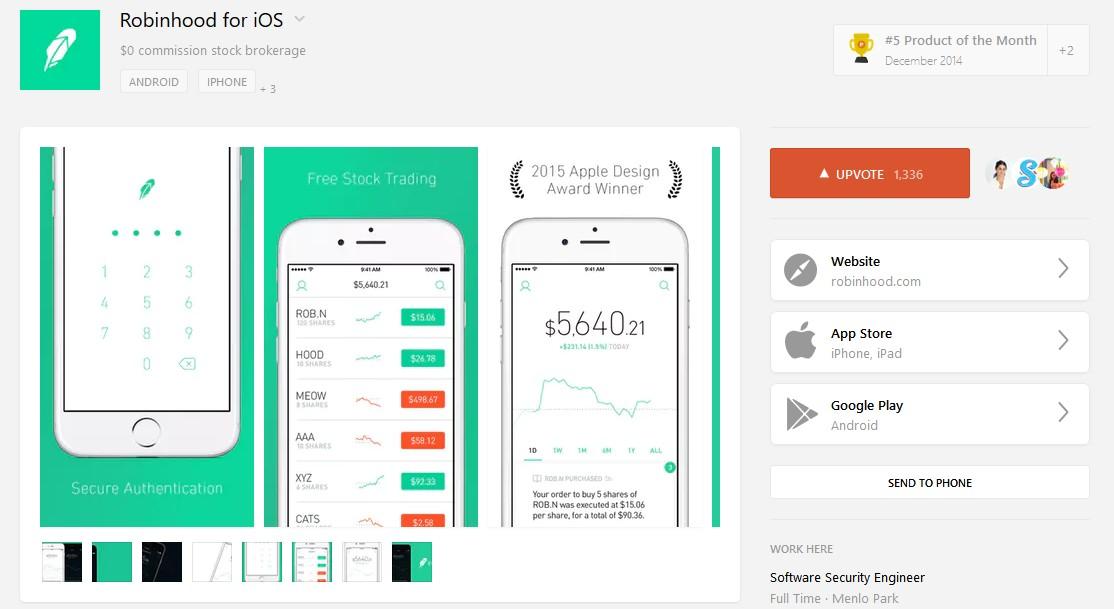
Submit Your App To Sites Like ProductHunt

How to Run a Successful Marketing Campaign on Product Hunt | CXL

There are a number of websites like ProductHunt that allows app developers to post their live app and get helpful feedback, visibility, and more often than not investors for their apps.

While investing in PR agencies and mobile-based news websites will help you sail through the initial growing awareness phase, there are not viable for the long run.

To keep getting downloads in the long run, you will have to make your application visible to people who would be genuinely interested in them.

In-App Advertisements

Top In-App Advertising Companies (2020) - Business of Apps

The next step in the process of ensuring that you have left no door unopened is by investing in in-app advertising models. Get in talks with popular apps that have space to insert your ad in theirs.

By placing your ad in the popular applications, you will be able to increase your visibility score to a great number.

Plan Referrals

How to Set Up a Referral Marketing Program For Any Industry (With Industry Examples)

One of the major reasons behind Uber’s success is their referral program. They make it beneficial for users to share it with their friends and family, in the form of discounted rides.

Depending on what your app is about, you can offer free lives, discount, free product, or even a gift voucher to the user and their family/ friend who uses their referral code.

Inauguration Discount

Free Vector | Modern pack of inauguration banners

If your app belongs to the paid category, you should offer yours for free in the first month or make the prime features available on an off or discount.

While planning on the features that you would be offering for free, make sure you go with the ones that will become coveted after they are not free or on discount anymore. If you make those features free which already comes with no price tag in the same category apps, the users will abandon yours.

Remain Visible

How to show (or hide) apps behind Siri - apps are visible while Siri is active - YouTube

It is very easy for the users, both prospects and the ones who have your app installed with them, to forget about your existence amidst the billions of other in the stores. So, keep reminding them of the value that only you can get them. Continue making appearance in the places they frequent.

These are the ways you can not just pave the road to a million downloads but also ensure the longevity of your mobile application in the overcrowded stores.

Having developed a number of million hits products with the help of our app developers, we understand that while a major portion of your app’s success depends on how far you are able to promote it in the world, it all boils down to your idea and its value offering ability.

If your application is able to offer some value to its users that they cannot get in the same form, ease or speed elsewhere, they will spread the news.

Another thing that matters in defining your app success is how much attention you are paying to your customers’ needs. How responsive you are to their issues and what is your correction time.

So, what really matters in the long run is how well your app is developed, the kind of value it is able to offer, and how responsive you are with your users’ needs.

error: Content is protected !!