The Good Developer

There are various parameters to judge a developer but for me the number one criteria is efficiency. Ahem…I don’t mean efficiency of writing bad code or providing sub optimal solutions. Far from it.I mean the efficiency to write good code. Readable Code. Extremely Flexible Code. A highly maintainable code.It’s the efficiency with which they passionately latch on problems and solve them. They are efficient because they understand the underpinnings of the programming framework and the toolset they use every day. So, how does one become efficient at developing software or be “The Good Developer”?

What Makes a Good Developer? A Manager's POV. | by Distillery Tech | Medium

I’m not sure if you loved Physics or if you ever understood Einstein’s famous mass-energy equivalence. Well, the one where he proved that mass of a body is a measure of its energy and they are connected by a constant.

E

    • =

mc2

I hope Einstein forgives me for this. But, in our little software development world, it means

E

    • = Efficiency

m

    • = (intrinsically) motivated

c

    = Cluefulness

Thus, efficiency of a developer can be defined as their level of motivation to excel times the square of their cluefulness.

True. Seriously. Don’t believe me? Ask Einstein. Can you? You can’t, can you? Then, you really have to trust me on it ?

What is Cluefulness? It can be defined as one’s expertise and capabilities in developing software. Please read this extremely insightful post by Eric Sink if you want to learn about Cluefulness and how to increase it.

If you one of the developers who are extrinsically motivated by rewards, all-the-things-money-can-buy-kind-of-salary, free beer to write code – tough luck in this life. On the other hand, if you are intrinsically motivated to learn new frameworks, delve into complexities of algorithms and data structures, write code for fun then all you have to worry about it is how to increase your cluefulness.

I won’t repeat what Eric mentioned in his great post but I would mention few things to increase your cluefulness.

Read Code – It’s surprising how less time developers really spend reading other people’s code for learning patterns and anti-patterns. Some developers would keep on writing the code in same style that they learned in school. For real. One can either learn by working with really good developers or reading code of open source frameworks/products. I can’t emphasize enough the value of reading code – Can one become really good writer if they haven’t ever read a good book in their life?

Focus – How can one become good at their art if the first thing they were to do every morning was check their friend stream on Facebook, chat with their long lost friends on their favorite IM, check their emails, any-other-unproductive-activity-except-programming. Shouldn’t the first thing really be to focus on building great software? I doubt if Einstein would have come up with general theory of relativity if he was checking his friend feed on facebook all the time or was being bugged by other Physicists on Skype.

The Best Software Development Tools Of 2021

Be Inquisitive – One has to be curious and hungry to learn new things, ruminate on hard problems, figure out ways of doing old things in a new way. One would never learn better ways of doing things if one is happy with the status quo.

Tools are your best friend – I’m not sure if a developer could really be productive in writing ASP.NET applications using Notepad. One has to be good at Visual Studio.NET or an equivalent IDE to be really productive at building websites using the ASP.NET framework. Thus, it’s not only enough that one spends the time in learning and polishing their programming skills but also picking up tricks to use the development environment to their advantage. Learn the Shortcuts, write loads of reusable code snippets, know how to use Nuget etc. They are an aide to being efficient and solving problems faster.

Angular JS: Custom Directives

This blog’s main purpose is to ease the understanding of the $scope in the custom directives. While creating custom directives we have to apply different types of functionalities, so for that we must know about the $scope behavior in the directives.$scope has a very important role in AngularJS, it works as a mediator (or like a glue) between the logic & view in an Angular application. Now if we talk about the custom directives, then first question which arises is-“Why do we need custom directives?

The answer is-

“In any application if we want some specific functionality and we want to reuse that in whole application module, then for this we need to develop a set of code. Angular calls it directives.”

Custom Angular directives

I am not going to discuss so much about custom directives basics here. In this blog I am just focusing on use of $scope into directives.

So, when we create a custom directive it has a default scope, which is the parent scope (the controller’s scope from where the directive is called). This behavior is by default, until and unless we do not set the scope.

As we know that whenever we define a directive, there is a “directive definition object” (DDO), in which we set some parameters like- restrict, template, require, scope etc.

In this blog I will talk about the scope properties, they are  false, true, {}.

Let’s discuss them one by one.

Angular JS Dhananjay Kumar debugmode Microsoft MVP http

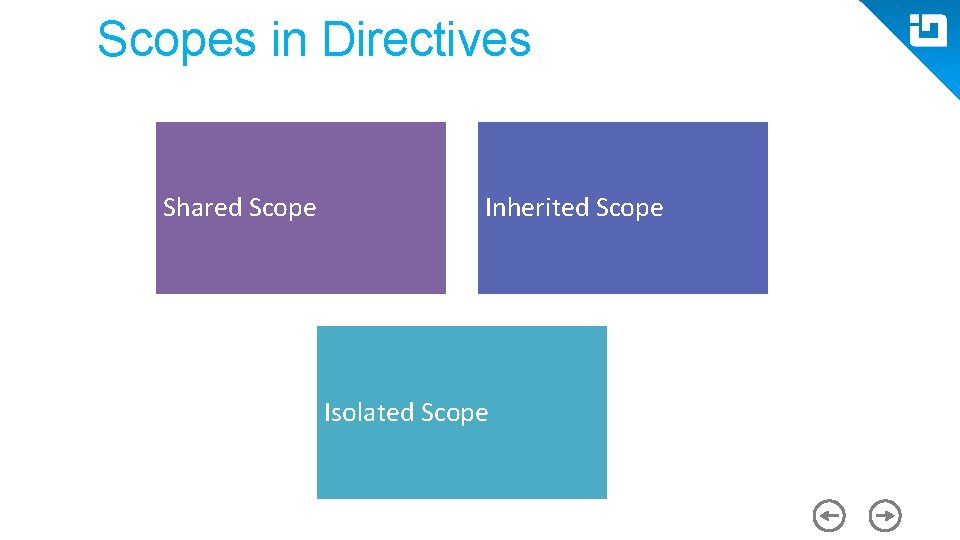
Scope : false (Shared Scope)

In layman language false is assumed as no, so if the scope is set to false, then it means use parent scope in the directive and do not create a new scope for the directive itself. It just uses the scope of respective controller. So let us suppose if we have a controller named “homeController” and a directive “printName”, then in printName directive we will get parent scope by default and any change in scope values, either child or parent, will reflect in both.

Scope : true (Inherited Scope)

Using this property, the directive will create a new scope for itself. And inherit it from parent scope. If we do any changes to the controller scope it will reflect on directive scope, but it won’t work the other way around. This is because both of them use their own copies of scope object.

Scope : {} (Isolated Scope)

One of the important features, its called isolated scope. Here too the directive will create a new scope object but it is not inherited by the parent scope, so now this scope doesn’t know anything about the parent scope.

But the question arises, if we do not have the link from parent scope then how can we get the values from it, and how can we modify it ?

The answer is- set the objects property into DDO, but for this it is necessary to set on attributes into the directive.

In isolated scope we use three prefixes which helps to bind the property or methods from the controller (parent scope) to directive (isolated scope). Lets understand how this works.

Whenever a directive finds any prefixes in its scope property in DDO, it checks it in directive declaration (in html page where the directive is called) with attribute declared on this element. We can also change the name by giving a separate attribute name after any of the prefixes.

These are @, =, &

‘@’ : One way binding

One way binding means a parent sending anything to the directive scope through the attribute, gets reflected in the directive. But if any change in the directive happens it will not reflect in parent. The @ is used to pass string values.

‘=’ : Two way binding

This is called two way binding, because the parent scope will also reflect to directive scope vice-versa.

It is used for passing object to the directive instead of string. This object could be changed from both sides, from parent or from directive. That is why it is called two-way.

‘&’ : Method binding

Used to bind any parent’s method to directive scope. Whenever we want to call the parent methods from the directive we can use this. It is used to call external (outside of current scope) functions. Overall “&” is used to pass data as a function or method.

In this example the directive creates a property inside its local scope, that is swapData. We can also understand swap as an alias for swapData. So we pass a method to ‘&’ which is then invoked by the directive whenever required.

Summarizing, Shared scope (sharing the same scope and data, can not pass the data explicitly), Inherited scope (parent scope values can be fetched into child but child means directive scope will not effect parent), Isolated scope (both controller & directive do not share the scope & data, we can explicitly pass the data using some parameters that is @, & ,= ).

ExoPlayer and UI customization

In this blog, we will learn how to detect different events of ExoPlayer and how to customize its UI components. The feature to customize the ExoPlayer UI components is available from V2.1.0 onwards.ExoPlayer events and UI customizations | Humble BitsSo let’s start with ExoPlayer events first:

Events

  • ExoPlayer.EventListener: This event listener gets called when there are any changes in player state. For example, this listener will get called if we change the seek position of the player or if we change the current playing track. There are several callbacks related to this event listener:
    • onTimelineChange(): called when the duration of the source has been determined.
    • onTrackChange():  called when the source track has changed.
    • onPlayerError(): called when some error occurs in playing the source file.
    • onPlayerStateChange(): called when the player state changes from one to another. The possible player states are idle, ready, buffering, paused, playing, stopped, completed, error, etc.
    • onLoadingChange(): called when the source starts or stops loading.
    • onPositionDiscontinuty(): called when the source seeks to some position.
    • onPlaybackParameterChange(): called when the current source parameter gets changed.

ExoPlayer Android Tutorial: Easy Video Delivery and Editing

So if you want to perform any operation or any customization during any of these events, then you can implement this listener. To start getting callbacks for any of the events mentioned above, you can set the ExoPlayer.EventListener to your player object using the addListener() method of the SimpleExoPlayer class.

  • AudioRendererEventListener: This listener can be used to listen to events related to audio rendering. For example, this listener will get called if the audio format gets changed or if the audio decoder gets initialized. Below are the available callback methods of the AudioRendererEventListener:
    • onAudioSessionId(): called when the first audio frame gets rendered and a random integer id is assigned to the audio stream.
    • onAudioDecoderInitialized(): called when the audio decoder gets initialized and the audio is ready to play.
    • onAudioTrackUnderrun(): called when the audio track gets cut down because of any reason by the ExoPlayer.
    • onAudioInputFormatChanged(): called when the audio format gets changed from one to another.
    • onAudioEnabled(): called when the audio track is enabled by the track selector.
    • onAudioDisabled(): called when the audio track is disabled by the track selector.

To start getting callback events for any of the above-mentioned methods, you can implement the AudioRendererEventListener. You can set this listener to the ExoPlayer object by using the setAudioDebugListener() method of the SimpleExoPlayer class.

  • VideoRendererEventListener: This listener can be used to listen to events related to video rendering. For example, this listener gets called when the first video frame is rendered on the screen or if a video frame gets dropped because of any reason. Below is the list of available callbacks of VideoRendererEventListener:
    • onDroppedFrame(): called when any video frame gets dropped by a player because of any reason. It will also give you the count and duration in milliseconds for the dropped frame.
    • onVideoSizeChanged(): called when the size (resolution) of the video gets changed.
    • onVideoInputFormatChnaged(): called when the source file format changes from one format to another.
    • onVideoEnabled: called when the video track is enabled using a track selector.
    • onRenderedFirstFrame(): called when the first frame of the video track gets rendered.
    • onVideoDecoderInitialized(): called when the video decoder gets initialized and the video is ready to play.
    • onVideoDisabled(): called when video track is disabled using a track selector.

To start getting callbacks for the above-mentioned events, you can implement the VideoRendererEventListener. You can set this listener to the ExoPlayer object using the setVideoDebugListener() method of the SimpleExoPlayer class.

Use of these events is optional. You are free to set the listeners if you need the callbacks. For example, if you want to perform any action when the video size gets changed then you can set the VideoRendererEventListener on SimpleExoPlayer via setVideoDebugListener() or if you want to perform any action when the audio decoder is initialized, you can set the AudioRendererEventListener on SimpleExoPlayer via setAudioDebugListener().

Now, let’s look at the ExoPlayer UI components.

UI Components

UI Components designs, themes, templates and downloadable graphic elements on Dribbble

  • PlaybackControlView: It is a view for controlling and managing different actions on the ExoPlayer instance. PlaybackControlView displays standard controls like play/pause, seekbar (for displaying the total duration and current duration), fast-forward and rewind.
  • SimpleExoPlayerView: It is a high-level view for ExoPlayer to display video, subtitle, and other standard player controllers.

Use of these UI Components is also optional. Developers are free to customize the complete view by implementing their UI components from scratch as well if they want. ExoPlayer has provided the privilege for full customization of UI components. These UI components can be customized in three different ways.

  • By setting attributes (or calling corresponding methods) on the views.
  • By globally overriding the view layout files.
  • By specifying a custom layout file for a single view instance.

Full documentation of these three different ways to customize the attributes is available on the official website of ExoPlayer JavaDoc of PlaybackControllView & SimpleExoPlayerView.

5 attributes are used to customize the ExoPlayer UI.

  1. use_controller: If you want to display the playback controller, set it to true else false.
  2. show_timeout: Input can be any long value which accepts the value in milliseconds. This is the controller view timeout.
  3. fastforward_increment: Input can be any long value which accepts the value in milliseconds. This is used to skip the video playback position forward with the input value. The default value is 15 sec.
  4. rewind_increment: Input can be any long value which accepts the value in milliseconds. This is used for moving playback position backward with the input value. The default value is 5 sec.
  5. controller_layout_id: If a developer wants to make the design of controller by themselves then they can design any layout XML file and can pass it to controller_layout_id.

That’s all for this blog. This blog was all about the different types of events and how to customize some basic UI components of ExoPlayer.

Windows 8 paired with Ubuntu 12.10: DUAL BOOT

I started with Ubuntu installation on Windows 8 and little did I know that it will have its own new complications. Lets try to understand!http://www.ubuntu.com/Since I had Windows pre-installed, the obvious suggestion to use ‘WUBI.exe’ was thrown at me. I went to the Ubuntu site to download the installer and got the Ubuntu 12.04 set up from the team. All I had to do was to let WUBI handle the installation and it would have been done but, it failed.

Dual-boot Windows 8 and Ubuntu 12.10 in UEFI mode | LinuxBSDos.com

My second attempt.

I made the USB installer from 12.04 Ubuntu setup. First, I had to download the USB installer and later insert the pen drive. Second, I had to run the installer and let it handle the rest. After you get the USB installer prepared one has to boot the system from the USB and for that one has to reach the BIOS set up first. Another interesting point, ‘do you know how to reach the BIOS setup on windows 8?’. Windows 8 works on UEFI technology and thus gives you a span of only “.2” seconds to hit the Del/F2 button bang on at the right time. Try to give it as a challenge to someone and you can bet 1000000$ bucks on it cause he will not get that done in his lifetime! Right!

http://www.ubuntu.com/download/help/create-a-usb-stick-on-windows

Another option is to go to the Windows setting from the start menu and to reach the General option. There the smart Windows 8 will ask you whether you want to boot again using other source like USB/DVD/CD. So, that will work if you have a USB/DVD/CD connected to the system. Remember only one! But the USB installer also didn’t work cause of what I later found out is the Windows 8’s UEFI feature.

UEFI stands for “Unified Extensible Firmware Interface”. The UEFI specification defines a new model for the interface between personal-computer operating systems and platform firmware. The interface consists of data tables that contain platform-related information, plus boot and run time service calls that are available to the operating system and its loader. Together, these provide a standard environment for booting an operating system and running pre-boot applications. UEFI would not support any OS without the UEFI feature so I had to do what I did next.

Got the Ubuntu 12.10 version and after a good hour and some minutes of my precious Ubuntu download I again made the USB installer. Do you want to know why I didn’t choose the WUBI.exe option? Well, when using WUBI.exe, I was given a choice from 3 GB to 30 GB for the Ubuntu storage, to which my team member informed would be insufficient. Like anybody in a similar situation, I too went with the ‘Boot using USB’ option but to my horror even this didn’t work.Hmmm!

http://releases.ubuntu.com/quantal/

New Mantra – “Disable Secure Boot”

After disabling the Secure Boot option in Windows 8, I got the Ubuntu USB installer working. I rebooted my system again to find that I didn’t get the option of Windows reboot! Do not worry as I didn’t write this blog without any prior success with the Ubuntu installation ;). Ever heard of “boot-repair”. Download it from the Ubuntu link and run on Ubuntu, reboot and success! ?

https://help.ubuntu.com/community/Boot-Repair

How to use Mockito in Android

Unit testing is an important part of any product development lifecycle. The main purpose of unit testing is to test components in isolation from each other and that is how our code should be written as well. To achieve this task of writing test cases for a class in isolation from the others, there are times when we need to mock some objects or data while writing our JUnit test cases. As the name Mockito suggests, it is a framework that allows us to do just that.If the UI related part of our code is already tested by some testing framework like Espresso, then it need not be tested again. Also, we do not need to test code that relies on the Android OS. So, we can use Mockito to test our non-UI or functional code that is not dependent on the Android OS.How to use Mockito in Android | Humble Bits

By default, when we run our local unit test cases, they run against a modified version of the android.jar file which does not contain any actual code because of which, when we try to invoke any method of an Android class from our test case, we get an exception. This is done to ensure that we test only our code and do not depend on some default behavior of the Android classes. We can also change this default behavior of throwing an exception to return zero or null values. However, we should avoid this as it could cause regressions in our test cases which are hard to debug.

We can substitute Android dependencies with mock objects. We can use Mockito for this to configure our mock objects to return some specific value when they are invoked.

Mockito Integration

Mockito and JUnit Integration Using Maven Example || Mocking in Unit Tests with Mockito - YouTube

To integrate Mockito in our Android apps, we first need to include the following dependencies in our app level build.gradle file.

Once we have added the required dependencies, we will create our test class in the directory module-name/src/test/java/, and add the @RunWith(MockitoJUnitRunner.class) annotation at the beginning of this class. This annotation tells the Mockito test runner to validate if the usage of the framework is correct and it also simplifies the mock object initializations.

We have to add @Mock annotation before the field declaration of any object we want to mock.

We can use the when() and thenReturn() methods to return a value when a particular condition is met in order to stub the behavior of any dependency.

Now, let’s have a look at a sample test class. The sample below checks that the method getHelloWorldString() of the class ClassUnderTest matches a given string.

How to Mock

We have 2 methods, mock() and spy() that can be used to create mock methods or fields.

Using the mock() method, we create complete mock or fake objects. The default behavior of mock methods is to do nothing.

Using the spy() method, we just spy or stub specific methods of a real object. As we use real objects in this case, if we do not stub the method, then the actual method is called.

We generally use mock() when we need complete mock objects, and use spy() when we need partial mock objects for which we need to mock or stub only certain methods.

Mocking Behaviour

Let’s look at how we can use Mockito methods to mock behaviour of the mock or spy objects we create.

when() :
It is used to configure simple return behavior for a mock or spy object.

doReturn() :
It is used when we want to return a specific value when calling a method on a mock object. The mocked method is called in case of both mock and spy objects. doReturn() can also be used with methods that don’t return any value.

thenReturn() :
It is used when we want to return a specific value when calling a method on a mock object. The mocked method is called in case of mock objects, and real method in case of spy objects. thenReturn() always expects a return type.

Now, let’s look at the common assertions we can use to assert that some condition is true:

assertXYZ() :
A set of assertion methods.

assertEquals(Object expectedValue, Object actualValue) :
Asserts that two objects are equal.

assertTrue(boolean condition) :
Asserts that a condition is true.

assertFalse(boolean condition) :
Asserts that a condition is false.

With the combination of the above mentioned methods and assertions, we can write test cases using the Mockito mocking framework.

Advantages & Disadvantages

Let’s have a look at the advantages and disadvantages of Mockito:

Advantages

  1. We can Mock any class or interface as per our need.
  2. It supports Test Spies, not just Mocks, thus it can be used for partial mocking as well.

Disadvantages

  1. Mockito cannot test static classes. So, if you’re using Mockito, it’s recommended to change static classes to Singletons.
  2. Mockito cannot be used to test a private method.

There are a few alternative mocking libraries like PowerMockRobolectric and EasyMock available as well which can be used.

Developing App? Here’s Angular Practices & Tips

Angular has been the most famous javascript framework among the developer community. It’s an MVC framework which provides pre-built components for developing the software application.Angular(2+) is based on Typescript , which is a superset of JavaScript. It comes with its most important advantage of static type checking that provides compile-time checking for any variable declarations and definitions.This blog is based around some best practices for Angular which I figured out while developing applications. There are also some bonus tips which I believe would help you with Angular development.

Essentials of mobile app development lifecycle that appreneurs must know - Business of Apps

Major Factors That Authenticate The Use Of AngularJS - Creative Tim's Blog

Follow the component based approach

Angular comes with the component-based paradigm which is also one of its best practices. It helps in maintaining modular and readable code.

While developing an angular code, if you think that something can be used multiple times as an independent piece of code, make it a component. A very basic example can be a simple dropdown which shows a list of options. The drop-down can act as an independent component with its own methods and template.

Few more examples could be – breadcrumbs for navigating throughout our web application, a simple alert box showing error/success messages or a loader. We tend to ignore these while thinking of modular approach but all these above examples can be thought of as independent components which can be reused over and over again.

Avoid using one huge global CSS

Angular’s current structure includes individual folder for every component. This folder includes-

  • .ts file for component logic
  • .html file
  • .css file for the component

So, keeping all of your CSS in one common CSS file would not only make your code less readable, it would make it less maintainable.

The best approach to style your components is to separate the global CSS with the local CSS (here local CSS refers to the component CSS). You should write your CSS in global CSS only when the CSS is written for the entire application and then if you need to style your component specific to a certain page, you can surely write in the local CSS.

Use CSS preprocessors for faster development

We can also use CSS preprocessors like SCSS/SASS for our Angular projects and I prefer them instead of writing plain CSS as they provide a lot of advantages over writing plain CSS. To mention one, the use of partials so that you can also separate your styles into multiple files for maintainability. If you guys want to know about partials, I would suggest you to go through this link.

You can divide your styling into multiple SCSS files just as we divide our application into multiple components. SCSS/SASS helps in writing smaller code which would ultimately get converted into CSS. So, why not save time and use it to our advantage.

CSS preprocessors | PSDtoWP.net

Save your time by using build tools

Tools like angular-cli have come up as a lifesaver for angular developers. It’s basically a boilerplate for an Angular application which helps in quickly setting up the angular application for your new project. It comes with all dependencies required for building your application and also has an inbuilt webpack which helps in bundling all your code and assets. Angular CLI helps to increase developers productivity through scaffolding by creating a component file, template file, stylesheet file etc. It comes with few basic commands which help in faster development like:-

  • ng g component my-new-component – it will create a new component with the name my-new-component.
  • ng g service my-new-service – it will create a new service with the name my-new-service.
  • ng g module my-module  – it will create a new module. A module is basically a collection of components which help to serve or attain a particular functionality.

Use ES6 paradigm and approach

Interfaces in Vanilla ES6 JavaScript – Full-Stack Feed

Though right now ES-8 is the current drafted version for ECMAScript but ES-6 came up with its own new features that are still widely used by developer community as they produce the same results with fewer lines of code and for best practices, every developer should know how to use them.

  • Arrow Function – In javascript, we use this keyword to refer to the current execution context. Previously, when we had to write javascript functions, this keyword would refer to the function context and we had to use a temporary variable to store the current execution context, so that we never lose it but with the arrow functions, the current execution context is never lost. For e.g., we could use an arrow function like this;

// ES5

var sum = function(x, y) { return x + y };

// ES6 (arrow function)

var sum = (x, y) => { return x + y };

Now, see the ES6 arrow function is just so compact and easy to understand and we can easily use this keyword inside this function to refer to the current execution context.

  • Template Literals – Template literals have come up with how we deal with printing strings having dynamic content.

For example, without template literals if we had to print a hello and goodbye message to a person, we would write something like :

const name = ‘AMAL’

console.log(‘Hello ’ + name +’ !’);

console.log(‘Goodbye ‘ + name + ‘ !’);

Now using template literals, it would be something like this:

const name = ‘AMAL’

console.log(`Hello ${name} !`);

console.log(`Goodbye  ${name} !`);

Now, who wouldn’t like to use the second syntax as it’s really easy to use and we don’t have to care about putting the spaces at right places so that the formatted output is correct.

Apart from these, const and let keywords came up as a replacement for global var variable so as to enable effective scoping of variables.

For a detailed overview of ES6 features, I would recommend having a glance over this.

Use Lazy Loading wherever possible

What is Lazy Loading | Lazy vs. Eager Loading | Imperva

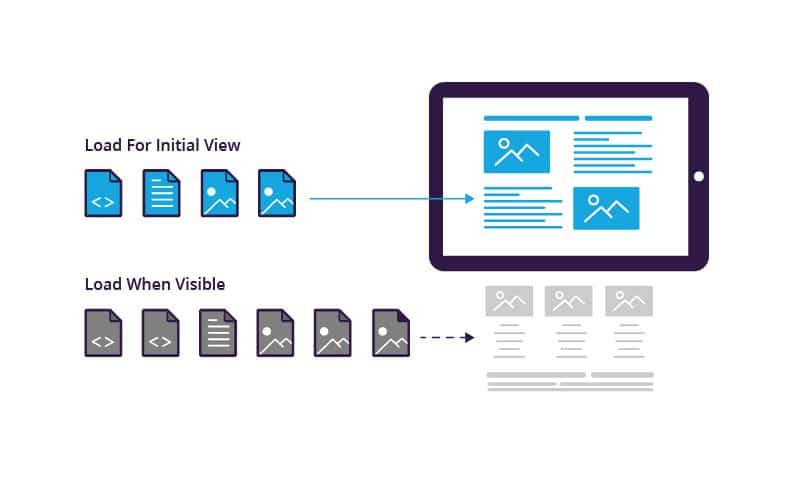
Lazy loading is based around loading modules only when you want them to show.

We know about Angular’s modular architecture where a code is divided into modules with each module having its own components.

These components are basically views which might have some dynamic data. These components are rendered with the help of angular routing.

Lazy loading is one of the best things that angular framework comes with.

It’s based around one principle – ‘load/use it when you need it’. Oh, yeah what a lame
explanation I’ve given. There is a routing.ts file in every module which defines a URL for rendering each and every component.

Now when it comes to implementing lazy loading technique, what we do is we define a routing file for each and every module and we import each module only when the URL changes and it corresponds to rendering a component defined in the routing file of that module.

This technique requires a bit of patience to learn but take my words, it’s worth implementing. I can tell you with my personal experience; we reduced the loading time of our website by 3-5 seconds by implementing lazy loading.

Previously, we imported the whole bundle each and every time the user hit our website URL making our site slow while rendering. Then after implementing lazy loading, we only imported the module containing component required to render our index page and we just loaded other modules only based on what URL the user is switching to.

The Angular docs surely cover the lazy loading technique and it’s worth reading. You can check this link to learn more about it.

Follow DRY principle, extensively use services and directives

Services

DRY – This keyword is very famous in the developer community and it just stands for Don’t Repeat Yourself. So, when writing any code- be it Angular or any language- if you feel that you are basically writing or repeating the same code in every component, then you must pause then and there and rethink whether the code can be placed at a suitable place and can be shared by every component.

For example, if you want to call an API that updates user data, don’t call it in every component. What I would do it, I would rather make a service for it in the .service.ts file and would call that function whenever I need any component.

Also, it serves the purpose of using services in angular. Services help us in saving and fetching data and also help us write common functions which could be used by multiple components.

Directives

Now switching over to directives. A directive is a piece of code which is used to perform a specific task. Directives are of 3 types in Angular – component, structure, attribute.

  • Components are as we all know templates with logic to handle data.
  • Structure directives modify DOM by adding or removing an element.
  • Attribute directives change appearance or behavior of an element.

Once, I was wondering to restrict input elements to accept only numbers when a user types in for a phone number field which shouldn’t accept alphabets. For this, I built an only number directive which would only allow input elements to accept numbers through the keycode. So just by using this directive as an attribute on an HTML input element, I can modify/change its behavior.

Conclusion

Following best practice is never a compulsion. There are many ways of doing things and you may choose any path. However, using best practices mean that you are following a method or a technique which is tried and tested through experiments and has proved to be effective to attain desired results.

Design Thinking in Healthcare

Design Thinking, at its core, is a creative process to solve everyday problems with a human-centered approach. While the word ‘creative’ may sound like something do only with designers/artists, the good news is- it’s not. Anyone can implement design thinking. The only thing that you really need is- listen to your customers as people who need your help. Once you understand their needs, their hopes, their fears and the friction they face while dealing with a particular problem- Bang! You are halfway through it.

Let’s hear a story. The story is about a woman named Elisa (yeah! I made that pseudonym). Elisa is an eighty-one-year-old woman suffering from age-related macular degeneration (AMD). When she was told she needs to take an injection in the eye for treatment, she was petrified. And why wouldn’t she? It’s not just any injection on the skin, it’s a needle in the eye. At the age when you are struggling with survival, it’s terrifying to think of ways in which you can go blind.

Why Design Thinking in Healthcare Matters

Apart from this particular case, it’s a fact that many of us dread getting an injection. Diabetic patients go through this painful experience, every day. Sometimes they have to administer these injections themselves, and sometimes they have to deal with a less skilled, less empathetic nurse.

Don’t you think we need a better solution to this? Can’t we develop something which makes this experience less scary? Can we go that extra mile and feel the pain of these patients? Can we somehow make them suffer less than they are already suffering?

An organization called Portal Instruments has now challenged this 160-year-old needle & syringe technology with design thinking. They have created a needle-free computerized injection system which fires a jet of liquid into the human skin. The handheld, low-cost unit is highly precise and accurate. The device is easy to use and its digital health features empower the patients to holistically manage their chronic condition interactively.

Design, particularly in healthcare, is about efficiency, usability, and a better user experience for patients as well as medical practitioners. And Design Thinking is a very powerful approach to solve customer’s problems. So where can you apply design thinking in healthcare?

Design Thinking in Patient Care

How Healthcare Organizations Can Start to Use Design Thinking | PreCheck

Patient care is not just about exchanging pleasantries and moving ahead with the treatment. When you apply Design thinking to this process, you will uncover ways in which care goes beyond the treatment.
A customer empathy map will help you understand your patient’s pain, concerns, fears and go beyond the clinical treatment. For instance, simply by listening to the concerns of expectant mothers, you can help them ease their anxiety. After quality research & brainstorming viable solutions, you can arrive at a proposed solution to help them be better informed about the labor process.

Design Thinking in Clinical Experience

Memorize the last time you were sitting in the emergency-room and recollect your waiting experience. Wait times are difficult to pass. You are in a troubled state of mind. Patients and their families spend a considerable amount of time in waiting rooms, sometimes waiting to be treated and other times waiting to see the doctor.

Design thinking may bring forth innovative ways of helping patients feel comfortable and make their experience bearable. You can start by asking questions and understanding their mindset. Must the patient be left alone while they wait for care? Is there a better way in which family wait time can be utilized? If you can not reduce the wait time, think of ways to utilize it. Once you answer these questions, you’ll be able to elevate the user experience of your users.

Design Thinking in Websites

If you are building a healthcare app/website, then you have to take care of the reliability and accuracy of the information that you provide. A person’s medical records can be critical information while monitoring health patterns or detecting disease symptoms.
Prioritize the most important information & fields for your users. Boil down to basics. Take all age groups into account and design keeping in mind their ailments.
They (might) want more information with less number of clicks, they (might) wish for larger and readable fonts. And while you may get away with frequent ‘small’ updates on social media apps, here it (might) frustrate them.

How to design a great Healthcare Experience

You know why every superhero is veiled behind a mask? Because creators of comic heroes want you to believe that even superheroes are like any other human. Their only superpower is endurance and resilience. They understand people; they want to solve their problems. They put people before anything else.
Much like Spidey! Or Batman.

Design thinking is same. It’s about organizing those mindful scattered ideas that everybody forgot to care about. Design thinking is about subtle differences which make you outshine from the ordinary. Yet it’s not so easy to put yourself in some else’s shoes. It takes a lot of efforts in brainstorming and generating ideas. Then, you should quickly pivot on a prototype and gather user feedback for continuous improvements.

Design thinking has already made it to healthcare. But, as we all are aware of the sad state of product design and innovation in Healthcare, there are still areas where it remains underused, such as patient transportation, the communication gap between doctors and patients, to name just a few. Here’s one approach that might be useful to you-

Research and define the problem statement

If you are dealing in the food business, wouldn’t you start talking to the farmers? So, start with conversations. Talk to patients/families about their problems.
Build customer personas. A persona is an imaginary character that embodies your real customer. Learn about your user’s lifestyle, their goals, their values, the challenges they face. Empathize with your users & their problems.
If you are designing an online appointment experience, you need to involve every single person associated. Right from the doctor to the patient. Even the receptionist. You need to understand their roles and most importantly, where they fit in together. Once you understand their pain points, then you’ll be able to create the experience for patients who need care.

Ideate

Design Thinking in Healthcare – IDEO U

Enough talking! Time for some action. Gather all that you have talked and use the outcome of Research phase to generate interesting ideas. Not all ideas will be usable; so try and stay close to ‘potential solutions’. Use techniques like high-level drawings, user-mapping and plot a user’s experience map to arrive at innovative solutions.
For instance, while building a SaaS-based mobile engagement platform for one of our client, our design team took conscious efforts to understand the whole journey- health plan benefits, treatment requirements, appointment details, communication medium, medication instructions etc.

Putting down our ideas on paper helped us a lot in working on user workflows. We were able to visualize a smarter workflow which connects with patients through mobile messaging for more effective communication.

Prototype and iterate

Giving your ideas a shape is crucial to the design thinking process. Otherwise, it will just be castles in the air. Prototyping is something that pushes you into making things tangible so that you keep moving forward.
Prototypes will be a proof of concept of your ‘ideation exercises’. They will help you in demonstrating and validating your concepts and understanding. Moreover, they are important because you would want to test your functionalities in a real environment with real users.

Prototypes need not be beautiful. It can be a black and white template of your colorful understanding. It must answer a simple question- as simple as “How would you like to reach out to your members?”

Depending on your application (web/mobile), prototypes can be interactive or static. What really matters is that they must convey the user experience flow.

The advantage of building a prototype is that it’s something substantial and not just some thought process going on in our mind. Once you have pushed that into a real environment, you can take feedback from users and iterate to simplify functionalities.

Designing for healthcare won’t be a joyride. Unlike social media apps like Snapchat, your healthcare platform will grow slowly. And that’s not your mistake. The user base that you are catering to, is not looking for socializing or entertainment. So the only solution lies in applying design thinking to approach problems.

Before aiming for success, first, offer a service that’s valuable. Offer a service that solves a real problem. Offer a service which makes them forget that they are interacting with a machine.
Let’s build a better healthcare experience. Let’s be more human.


Basics of Espresso

Unit testing is an essential part of any development lifecycle. Writing unit test cases can come in handy when we want to make sure that our code still works as expected even after code changes have been implemented.Espresso Testing Tutorial - TutorialspointIn Android, we have two types of unit tests that we can write:
  1. JUnit Test Cases
  2. Android Instrumentation Test Cases

JUnit test cases are test cases that can run on the JVM. It is preferred to write JUnit test cases as they can run directly on the JVM and are much faster. While writing local unit test cases, if there is any dependency on the Android system, those dependencies can be mocked using a mocking framework like Mockito.

Android Instrumentation test cases, on the other hand, need the Android system to run. They need an actual Android device to run on. They should be used if the test cases rely heavily on the Android system like the Android UI. As they first need to be deployed on an Android device before they can run, they are usually slower than local unit tests.

In this blog, I will talk about how we can write basic Espresso test cases to test the Android UI.

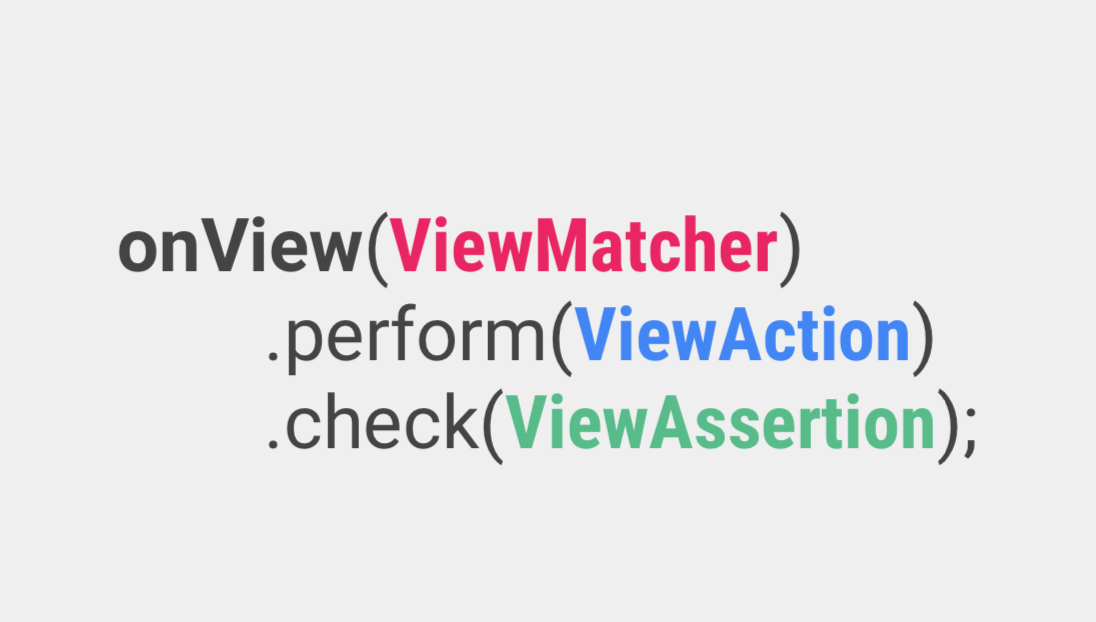
Espresso has 4 main components which are:

Espresso Recipes for Android - Part 1 - Hearth | by Dogan Kilic | Medium

  1. Espresso – It is the entry point for any interaction with views (using onView() and onData()). It also exposes certain APIs that are not specifically linked with any view, like pressBack().
  2. ViewMatchers – They are a collection of objects implementing the Matcher <? super View> interface. One or more matchers can be passed to the onView() method to find a view inside the current view’s hierarchy. In case the view that we are trying to match is not present in the view hierarchy, Espresso throws a NoMatchingViewException.
  3. ViewActions – They are a collection of actions (ViewAction) that can be passed as an argument to the ViewInteraction.perform() method to perform some action on the view, such as click().
  4. ViewAssertions – They are a collection of assertions (ViewAssertion) that can be passed as an argument to the ViewInteraction.check() method to assert some state of the view. Most commonly used ViewAssertion is the matches assertion, which uses a ViewMatcher to assert the state of the currently selected view.

A complete list of the available ViewMatcher, ViewAction, and ViewAssertion can be found in this Espresso Cheat Sheet.

Now that we know the basic components of Espresso, let’s see how we can integrate Espresso into our Android projects. Let’s start with setting up our test environment.

It is recommended to turn off system animations on the device on which the tests will be run. This should be done in order to avoid test flakiness. Go to Settings -> Developer Options and turn the following 3 animations off:

  1. Window animation scale
  2. Transition animation scale
  3. Animator duration scale

We can override beforeActivityLaunched() to execute any code that should run before our Activity is created and launched.

We can override afterActivityLaunched() to execute any code that should run after our Activity is created and launched but before any test case is executed.

We can override afterActivityFinished() to execute any code that should run after our Activity has finished.

Methods annotated with @Before annotation are executed after the activity is launched and before the test case is executed.

Methods annotated with @After annotation are executed after the test case is executed and before the activity finishes.

ActivityTestRule rule provides functional testing of a single activity, that which is specified in the ActivityTestRule. This activity will be launched before executing every test annotated with the @Test annotation. ActivityTestRule has 3 constructors:

The activityClass parameter indicates the activity class that needs to be launched before every test.

The initialTouchMode parameter indicates whether the activity should be launched in touch mode.

The launchActivity parameter indicates whether the activity should be launched by default before every test case is executed.

Let’s see how we can pass some data to the activity before any test cases are executed. There are two ways in which this can be achieved.

First, we can use the 3rd ActivityTestRule constructor along with the @Before annotation to achieve this. Passing the launchActivity parameter as false indicates that the activity will not be launched by default. The method annotated with the @Before annotation will be executed before every test case

The second way is to implement the ActivityTestRule constructor and override the getActivityIntent method. The getActivityIntent method returns the custom intent that we build and this intent is then available to the activity under test after it’s launched.

We have seen how to setup Espresso and how simple test cases can be written. I hope this article motivates you to implement Espresso in your Android applications for UI testing.

Android: Applying Shared Element Transitions

Doesn’t it look cool when one view appears to move across screens without breaking the continuity of motion? It just adds to the flair of your app, thus improving the app’s UX.Now, this can be achieved using Shared Element Transitions; but here is the catch. This transition effect is available only on devices running on Lollipop (Android 5.0 – API level 21) and higher.Shared elements transitions were introduced in Android 5.0 to make view transitions across screens more seamless and easy to implement. Using this transition, the switch between Activities or Fragments seems more natural and unforced.

Before Android 5.0, transition effects across Activities were available, but they would animate the entire root view of our screen. Using shared element transitions, we can animate any number of views, regardless of their view hierarchies.

Android - Shared Element Transition

Now, let’s see how we can implement shared element transitions in our Android apps-

Step 1 : Enable Window Content Transitions in styles.xml

Step 2: Set a Common Transition Name for Respective Views on Both Screens

For the transition to work across screens, you have to assign a common transition name to the shared elements (views) in both layouts. The views don’t have to be of the same type or have the same id, only the transition name must be same.

The transition name can be set using the android:transitionName attribute in xml or using the setTransitionName() method in Java.

Step 3: Open Activity with Element Transition

In order to get the transition effect, you have to specify a bundle of the shared elements and view from the source activity while starting the target activity.

When we specify the source view along with its corresponding transition name, it ensures that even if multiple views exist in the the source view hierarchy with the same transition name, it picks the correct view to start the animation from.

While specifying multiple shared elements transitions, make sure that you import android.support.v4.util.Pair. Please ensure that you do not overdo the transitions, as that can distract the user and degrade the user experience.

Step 4: Close Activity with Reverse Element Transition

In order to get the reverse element transition effect while finishing the second activity, you need to call the Activity.supportFinishAfterTransition() method instead of the Activity.finish() method. Also, you need to make sure that you override the Activity finish behavior everywhere in your activity, for example if you have a back button in your Toolbar or if the user presses device’s back button.

Shared Elements Transitions with Fragments

How to use Shared Element Transitions with Fragments

We can achieve shared elements transitions with Fragments as well.

Step 1: Set a Common Transition Name for Respective Views on Both Screens

Step 2: Define a Custom Transition:

Step 3: Specify the Shared Elements Transition in FragmentTransaction:

Custom Shared Elements Transitions:

In Android Lollipop (Android 5.0), the default shared elements transition is a combination of 4 transitions:

  1. Change Bounds – It captures the layout bounds of target views before and after the scene change and animates those changes during the transition.
  2. Change Transform – It captures scale and rotation for Views before and after the scene change and animates those changes during the transition.
  3. Change Image Transform – It captures an ImageView’s matrix before and after the scene change and animates it during the transition.
  4. Change Clip Bounds – It captures the getClipBounds() before and after the scene change and animates those changes during the transition.

In most cases, the default transition is sufficient. However, there might be cases in which you might want to customize the default behavior and define your own custom transitions.

You can set the window content transitions at runtime by calling the Window.requestFeature() method.

Exclude Elements from Window Content Transitions

Sometimes you might want to exclude the use of the status bar, ActionBar and navigation bar from the animation sequence. This might be particularly required when your shared elements are drawn on top of these views.

You can achieve this by excluding these elements from the transitions. This can be done by adding a <target> tag and specifying the ID of the element you want to exclude.

Shared Elements Transitions with Asynchronous Data Loading

There might be cases when the shared elements require data that might be loaded from a web API or URL. The most common example is when a URL needs to be loaded into an ImageView which also happens to be the shared element we want to animate. However, the shared element transition might get started by the framework before that data is received and rendered.

We can overcome this by temporarily delaying the transition until we know that the shared elements have been rendered with the fetched data.

We can delay the shared element transition by calling postponeEnterTransition() (For API >= 21) or supportPostponeEnterTransition() (For API < 21) in your second Activity’s onCreate() method.

Once you know that the shared elements have been rendered with the data, you can call startPostponedEnterTransition() (For API >= 21) or supportStartPostponedEnterTransition() (For API < 21) to resume the paused transition.

We can start the paused transition in an onPreDrawListener which is called after the view layout and before the view is about to be drawn.

Results

You can expect to see something like this once you are done with all of the steps above.

How to apply Shared Element Transitions in Android | Humble Bits


Employing Automation to test Data Interface

Say, you got a DB comprising of huge data with billions of records. You have to showcase it on UI only after making sure that everything you want to represent on UI is accurate and as expected. Incorrect data could impact your business in unknown and serious ways that can lie undetected for months.So, here you might need to plan a new strategy, which should lead to answers of all your questions.One of the finest approach among this strategy should be- to make sure that everything you are showing is validated and verified. This leads to a special type of testing called as Data Interface Testing.

What is Data Interface Testing ??

What is Interface Testing? Types & Example

Before we go ahead with Data Interface Testing, let’s first discuss about data interface. Lots of application in the market are nowadays based on Data Mining or Big Data concept. This helps to streamline the big data and showcase on UI in an adequate manner.

Now, as many people say that there is always some pros and cons for each process. Similarly, even this one has few. One of the biggest one is showcasing huge data. But I have a solution.

There is always a challenge to show the huge data on UI where everything is placed at their respective place with correct data set and correct orientation (if you’re showing the data in graphical representation).


So, the interaction between database and User Interface brings the term Data Interface. And to make sure that it works well both ways i.e. request and response results, we call it as Data Interface testing.

Big Question !! 

Can I test this much of data and all of that manually??

Answer is yes, it is possible. But practically not a good way to do the same.

So what …?? Automation ??

Yes.

But what if I don’t have any good knowledge for it ?

Don’t you worry, we got a cheat for you !!!  A tool to test data interface automatically, with a very basic knowledge for Automation/coding.

Automation Tool

Some Info Regarding this tool
This tool is made to test validation and verification of data between database and user interface. To make this tool useful, one can easily use it on it’s own working environment, by customizing the details in provided file and coding as per their requirements. .

How this tool works ?

With it’s main class, it reads multiple files which further executes the methods written in those properties.

For reference, the source code is mentioned below:

Representing Main Class of Tool

Method written in above class is dependent upon various files. One of them is called as Property_Reader file.

This is a custom made file, which executes multiple methods and brings result for main class.

1. Property_Reader_Method

2. db_property

This file comprises of all properties, which helps in setting up connection with server/DB.

Following are the properties used in this file.

  1. Url=jdbc:presto://10.0.11.198:8080/test/default
  2. UserName=root
  3. Password= 12345
  4. ClassName=com.facebook.presto.jdbc.PrestoDriver
  • You can change your URL and credentials as per available server(s).
  • Password can be null too. Depends upon the server details.
  • For current we are using presto as DB.

3. query_column

This comprises of column name for which data needs to be fetched from DB. For every query there should be a unique query name which must be identical in all property files for that query.

For below mentioned example. “testA_count” is the name of query which is unique from rest of the two but same in other property files for queries with same conditions.

Apart from that, irrespective of number of columns available in expected and actual query, it will only bring data for “Column A” column in the result set.

Same case for others too.

4. query_actual

This property file contains the queries created by developers or fetched through server logs file which are created while accessing the application through UI.

5. query_expected

This property file contains the queries created by testers.

By running the above mentioned code for main class, it will create a new result file every time. This file will comprise of end result for executed queries, having expected and actual result with numbers and pass/fail result.

For Failed Case:

Let’s change the actual query to-

Points to be considered:

  • Make sure that the query name should always be the same in all expected, actual and column property file.
  • For every query there should be a unique query name.

Benefits of using this tool are:

  • Any Structured DB can be used for this eg. Presto, MySQL, MS-SQL etc.
  • Platform independent. Can be run on Windows/Ubuntu/Linux.
  • Can be run on a project written in any language.
  • Doesn’t require any prior coding skills or automation knowledge.
  • One can easily put the expected and actual test case in respective property files and can have the result set, with complete information.
  • Can be easily customized as per available resources/requirements


error: Content is protected !!